
Setting HR Zones
It all begins with an idea. Maybe you want to launch a business. Maybe you want to turn a hobby into something more. Or maybe you have a creative project to share with the world. Whatever it is, the way you tell your story online can make all the difference. You've completed your Lactate Threshold Heart Rate (LTHR) test—well done. Now comes the critical part: setting up your training zones correctly in TrainingPeaks so your workouts deliver the intended training stimulus.
This process trips up athletes regularly, even experienced ones. This guide provides clear, step-by-step instructions to ensure you get it right.
Step 1: Calculate Your LTHR From the Test
Your LTHR is determined from the 30-minute time trial effort you've just completed. Here's how to find it:
Upload your ride to TrainingPeaks
Open the activity file
Locate the 30-minute test effort
Identify the average heart rate for the final 20 minutes only (minutes 10–30 of the effort)
Record this number—this is your LTHR
Example: If your average heart rate for minutes 10–30 was 168 bpm, your LTHR is 168 bpm.
Important: Do not use:
Your maximum heart rate from the test
The average for the entire 30 minutes
An estimated value based on perceived effort
A percentage of your maximum heart rate
The final 20 minutes provide the most accurate representation of your sustainable threshold, as it accounts for cardiac drift and ensures you've reached a steady state.
Step 2: Enter Your LTHR Into Our Zone Calculator
Before configuring TrainingPeaks, visit our website and input your LTHR:
👉 https://www.aoathletes.com/lthr-calculator
This calculator will determine your individualised training zones in beats per minute. Keep these values accessible—you'll need them for reference.
Step 3: Configure TrainingPeaks Correctly
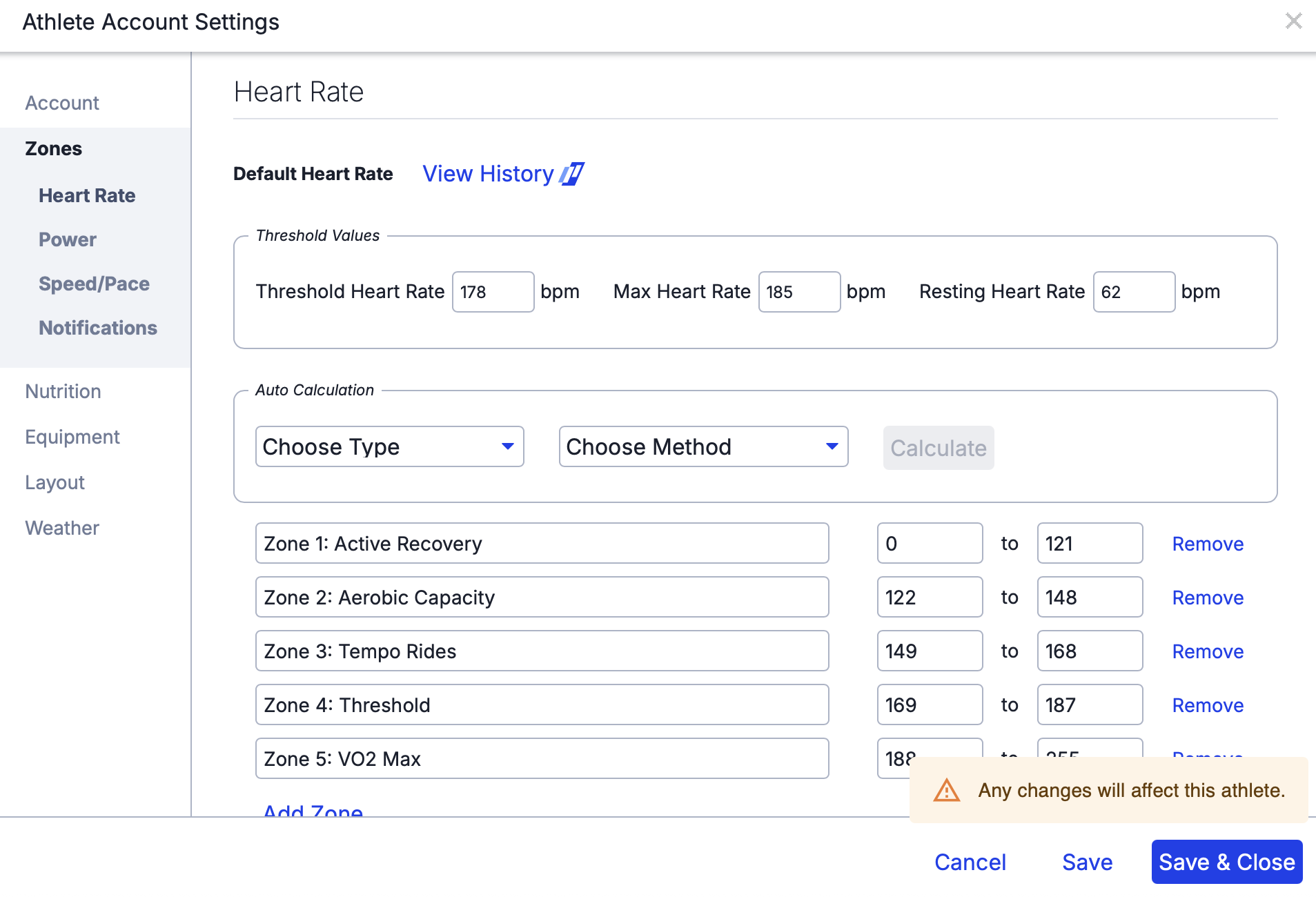
This is where most errors occur. TrainingPeaks requires you to manually input your threshold value. Here's the exact process:
Log into TrainingPeaks
Click your name (top right corner)
Select "Settings"
Click "Zones" from the left menu
Select "Heart Rate"
Under "Threshold Heart Rate", enter your LTHR value from Step 1
Click "Add Threshold"
Ensure the date is set to today's date or earlier
Click "Save"
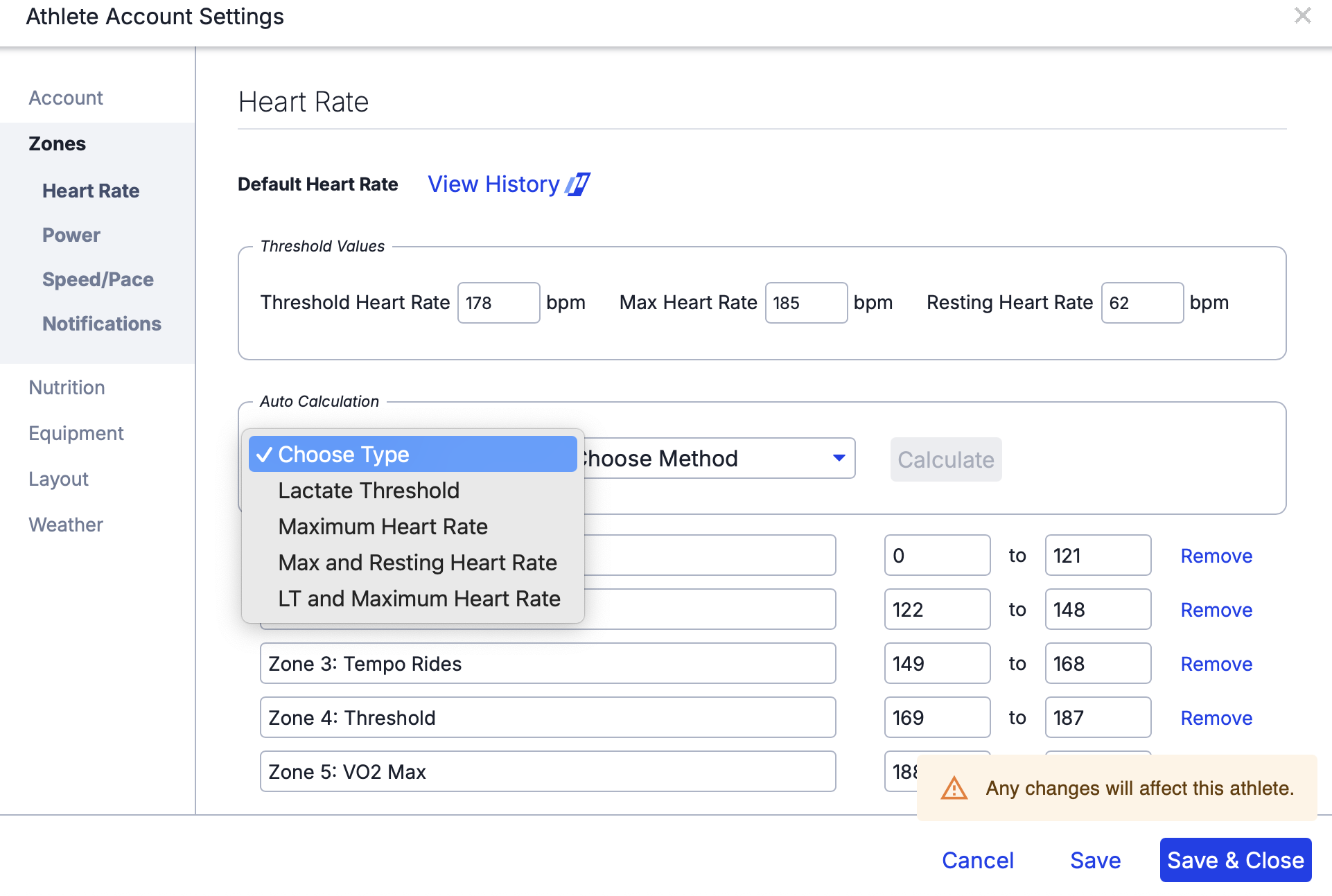
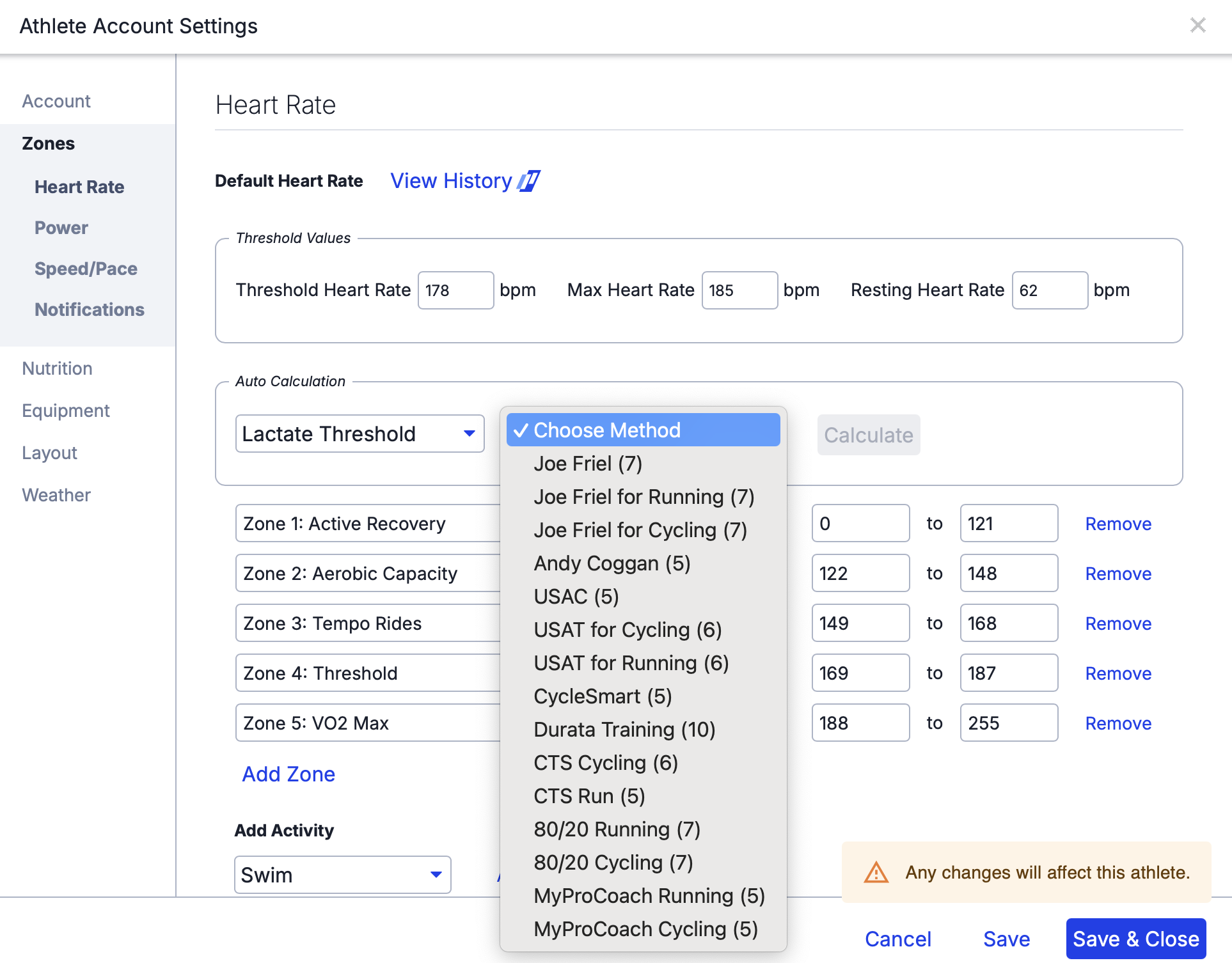
Critical step: TrainingPeaks needs to know which calculation method to use.
Scroll to "Calculation type"
Select "Threshold Based" from the dropdown
Select “Method Joe Friel cycling” from the dropdown
Click "Save" again
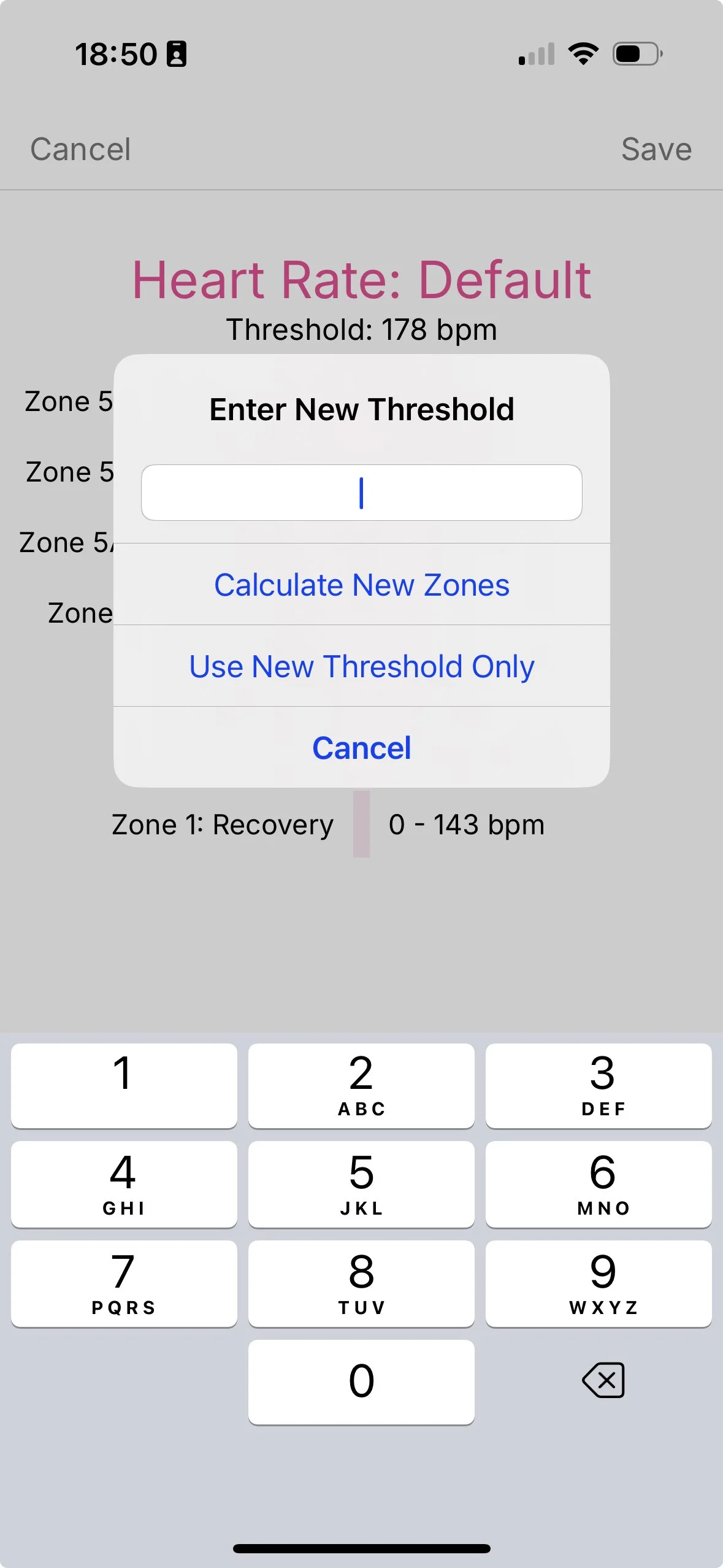
Critical: the screenshots are from a laptop. This is the way I recommend setting it up, but via the app will still work the same! See the last image.
Understanding Zone Labels vs Heart Rate Values
Important: Your workouts are prescribed as percentages of your LTHR (e.g., 70–80% LTHR). TrainingPeaks will calculate the correct heart rate values based on your threshold, but the zone label it displays (e.g., "Zone 1" or "Zone 2") may not match what you expect.
This is completely normal and nothing to worry about.
TrainingPeaks assigns zone labels based on whichever zone calculation method your account uses (Friel, Coggan, British Cycling, etc.). Because we prescribe workouts as percentages of threshold, the zone label is irrelevant—what matters is the actual heart rate range displayed.
Example:
Prescribed workout: 70–80% LTHR
Your LTHR: 170 bpm
TrainingPeaks calculates: 119–136 bpm (correct)
TrainingPeaks labels it: "Zone 2" (label doesn't matter)
Follow the heart rate numbers, not the zone name. The physiological training stimulus is dictated by the intensity (heart rate), not by what TrainingPeaks chooses to call it.
Common Issues and Solutions
Issue #1: "My zones look unusual"
Cause: You've entered your maximum heart rate instead of your threshold heart rate.
Solution: Your LTHR should typically be 85–95% of your maximum heart rate. If you've entered 195 bpm as your threshold and you're in your 40s, you've likely entered your maximum by mistake. Correct this immediately.
Issue #2: "The heart rate values seem too high for the prescribed effort"
Cause: You've selected a maximum heart rate-based calculation method rather than a threshold-based method.
Solution: Return to Settings → Zones → Heart Rate and confirm you've selected "Threshold Based" as your calculation method.
Issue #3: "I updated this six months ago—surely it's still valid?"
Cause: Threshold values change with training adaptation, detraining, or changes in fitness. If it's been 3–6 months since your last test, your zones are likely inaccurate.
Solution: Retest and update your threshold. Training at incorrect intensities compromises adaptation.
Issue #4: "Can't I use auto-calculated zones?"
Cause: Auto-calculated zones are based on population averages and algorithms. They don't reflect your individual physiology.
Solution: No. The purpose of threshold testing is to establish your actual, physiological markers. Use the tested value.
Issue #5: "My old workouts show different zones than my new ones"
Cause: This is expected behaviour. Workouts are prescribed as percentages, so they recalculate automatically when you update your threshold. Historical workouts display the zones that were active at the time they were completed.
Solution: Verify that upcoming workouts display the correct heart rate ranges based on your current threshold. Historical data doesn't need to be changed.
Issue #6: "The zone label doesn't match what I expected"
Cause: As explained above, TrainingPeaks assigns zone labels based on your account's calculation method, but we prescribe by percentage of threshold.
Solution: Ignore the zone label entirely. Follow the heart rate values shown in bpm. The label is cosmetic; the intensity is what matters.
Why Accurate Zone Configuration Matters
Incorrectly configured zones undermine your entire training programme:
Too low: Insufficient training stimulus, minimal adaptation
Too high: Excessive fatigue accumulation, inadequate recovery, increased injury risk
Incorrect distribution: Training becomes monotonous "grey zone" work with poor fitness gains
The LTHR test protocol we use is a validated, standardised 30-minute effort that provides a reliable marker of your lactate threshold. However, it only serves its purpose if you correctly implement the resulting value in your training platform.
Final Checklist
Before proceeding, confirm you've completed all of the following:
✅ Calculated LTHR from the final 20 minutes of your test
✅ Entered LTHR into our calculator: aoathletes.com/lthr-calculator
✅ Updated your TrainingPeaks threshold heart rate value
✅ Selected "Threshold Based" as your calculation method
✅ Saved your changes (both for threshold value and calculation method)
✅ Verified that upcoming workouts display appropriate heart rate ranges
✅ Understood that zone labels are irrelevant—follow the bpm values
Still Having Difficulties?
If your zones appear incorrect or you're uncertain about your setup, contact us with the following information:
Your LTHR value
A screenshot of your zones configuration page in TrainingPeaks
A screenshot of an upcoming workout showing the prescribed heart rates
We'll identify the issue and guide you through the correction.
Next Steps: With your zones properly configured, your TrainingPeaks workouts will display accurate heart rate targets. Focus on executing the prescribed sessions at the correct intensities. The training will take care of the rest.
